
Train with OnlyMove offline
A lost connection does not have to interrupt your opening practice. OnlyMove saves training progress and repertoire changes on your device, then syncs when you return online.
Tip
Every image in this guide is a real product screenshot with demo data. Click any image to enlarge.
Before relying on offline mode, open OnlyMove online on the device you plan to use and let the app and your repertoire finish loading. Both need to be saved on this device first.
1 · Switch to offline mode
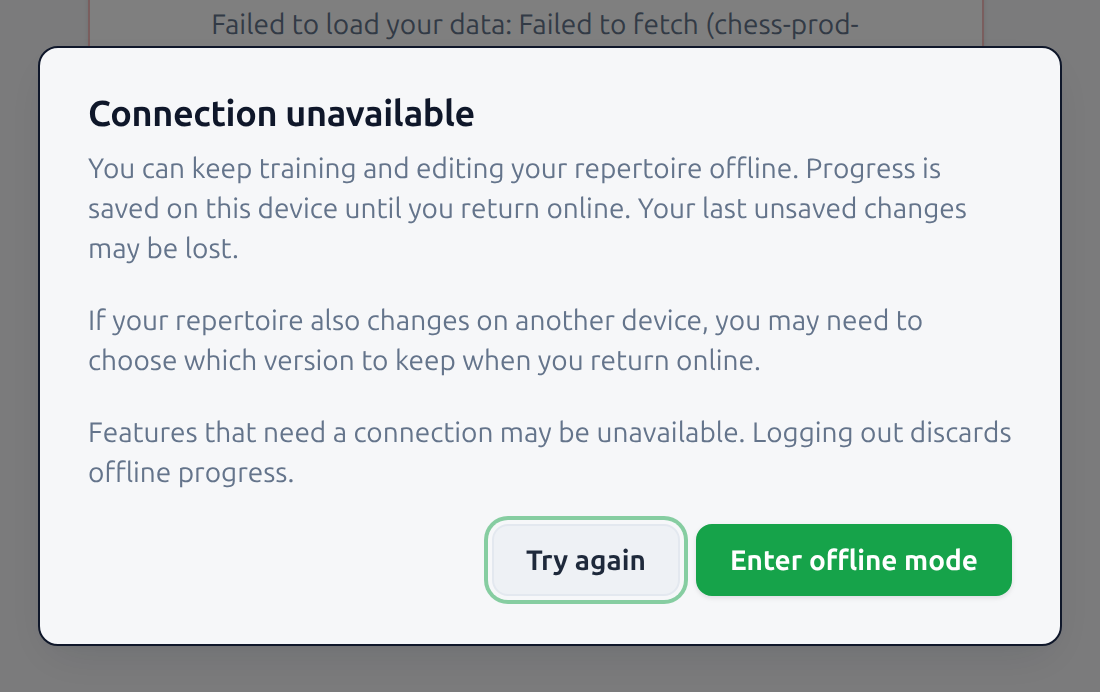
If the connection fails, OnlyMove offers Try again or Enter offline mode. Choose Enter offline mode to continue with the repertoire saved on this device.
2 · Keep training
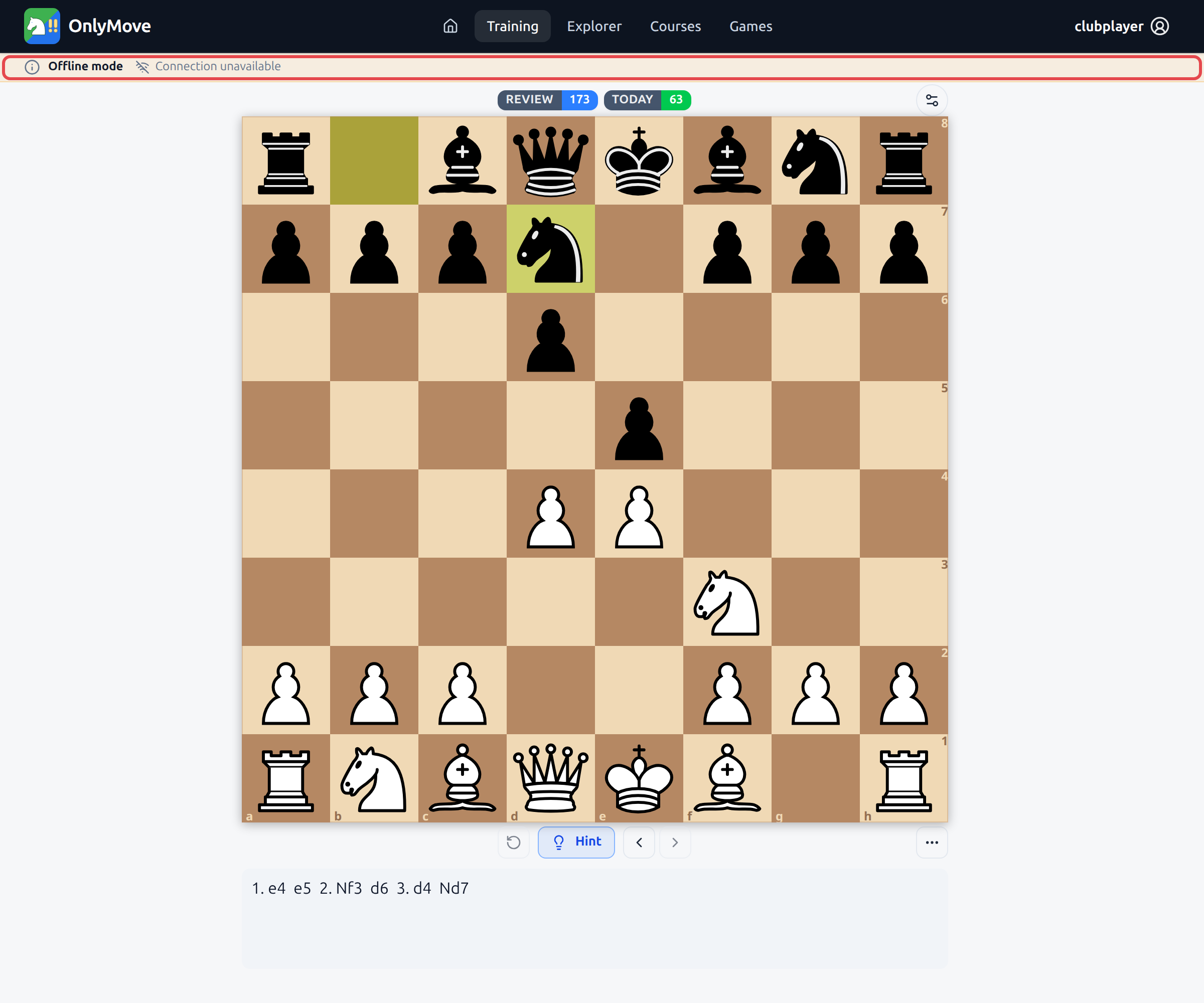
An Offline mode strip appears below the header. You can continue in Training, edit your repertoire in Explorer, and work with your saved Courses. Changes are saved on this device, including across app restarts.
Features that need an online service may be unavailable until you reconnect.
3 · Reconnect and sync
When the connection returns, OnlyMove automatically goes online after your current training line and pending saves finish. It compares the device and online versions; if only one has changed, it can keep that version automatically.
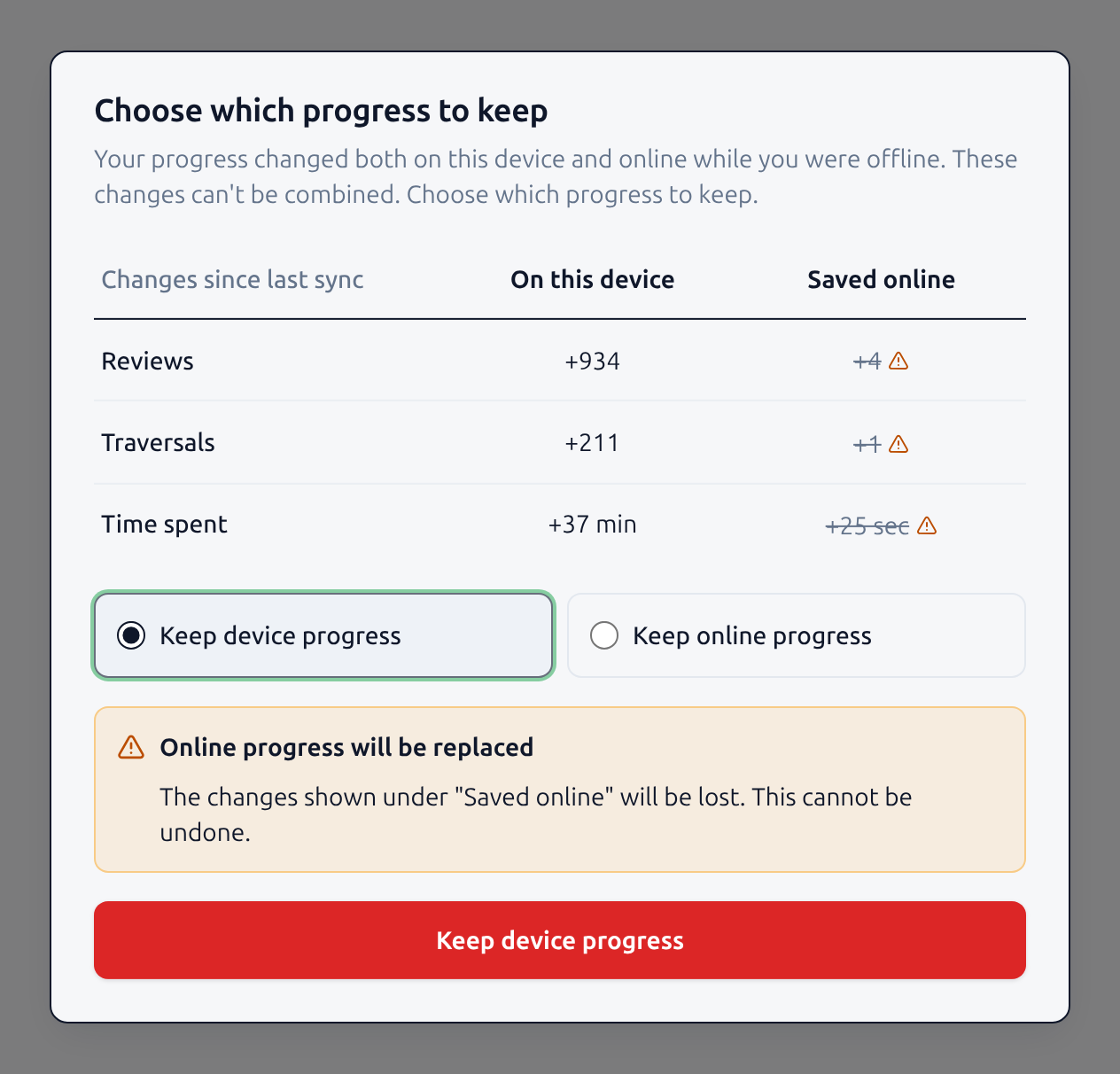
If both changed, you will see Choose which progress to keep. Here you trained offline every day during a five-day vacation: 934 reviews over 211 traversals, with 37 minutes of practice in total. Then you accidentally opened OnlyMove online on another device and completed one traversal – 4 reviews in 25 seconds.
Compare On this device with Saved online. In this example, Keep device progress preserves the vacation’s practice; Keep online progress would discard it. Select the version you want, review the warning about what will be discarded, then press the matching button to confirm.
You keep one complete version; the versions are not merged. Changes in the other version are lost when you confirm. If syncing fails, your offline progress stays on this device for another attempt.
Go offline manually
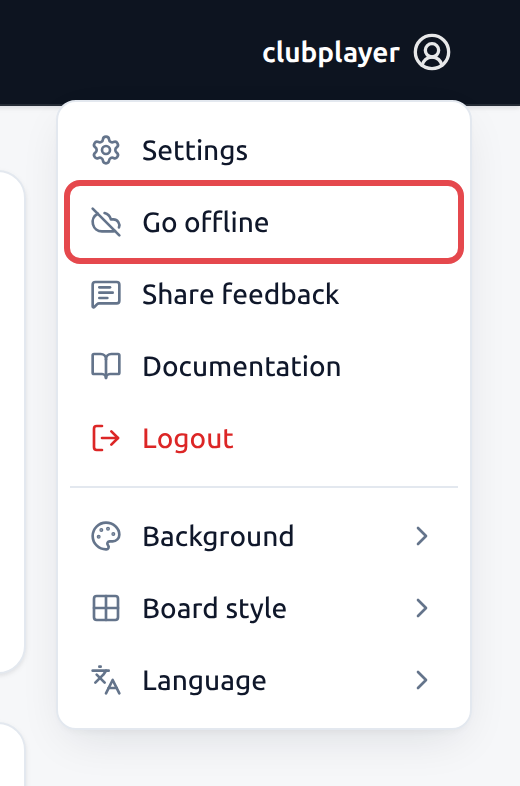
Planning a trip with limited reception? While you still have a connection, open the account menu in the top-right corner and choose Go offline. This checks that the device is ready before you need it.
OnlyMove stays offline until you choose Go online, even when a connection is available. You can find it in the same account menu or in the Offline mode strip when you are connected. Returning online uses the same sync process described above.
Tip
Sync before you log out. Logging out discards offline progress that has not been synced.